Since podcast is the hot topic now, how about producing your own podcasts ? It is cool to host your talk show! Actually, Podcasting is a breeze !
To start your own podcast, all that you need is :
• A microphone
• Some free software
• Space on a web server
• Gift of the gab
That’s all! Simple!:)
But then, you should also learn just a few skills, which is a child's play!
You need to know how to:
• Record your audio and save it as an MP3 file.
• Create an RSS file.
• Write the “directions” that are inside the RSS file
• Upload the RSS “feed” and yourMP3 file
• Authenticate that the file is written and sent correctly.
Yes, That’s it! Told you that it is a snap!
Besides, just keep in mind the following:
• To use a good quality microphone so that your audio sounds good and clear.
• For recording, it is irrelevant what software application you use to record your audio.
• You simply have to create an audio file that can be converted to an MP3 file format.
Well, you are all set to be a Radio star!
Don’t miss the next post –Step by step tutorial to create your own podcast! :)
Copyright © 2008-2009 Laila Rajaratnam. All Rights Reserved.
Read more Entry>>
Tuesday, January 20, 2009


Monday, January 19, 2009
Google's Hidden Calculator
Is there anyone who do not know that Google is a search engine? Well , but then, how many know that you can use Google search box as a calculator as well?It has a hidden calculator! Oh, no! It is not just an ordinary calculator to calculate only the basic math stuff but it can calculate both the basic and advanced math problems too!
Another advantage is that, you don't have to restrict yourself to numbers! Google can understand any words and abbreviations and evaluate those expressions, too.
Like for example, you want to add 1+1 (Great! Since I’m not a genius at Maths, I can only understand such simple basic stuff as 1+1..LOL)
Anyway,Go to Google Search engine.
Type in 1+1 and click Search
Your ansnwer will show up 1+1=2
You may use words too
Like,one plus one
and your results show.. one plus one=two

 You want to search for documents containing the terms you added, like for instance the 1+1,we just totaled? You can just do that and get results!
 You can calculate like this too!
 Next, coming to Complex Math problems…
Google can calculate more complex problems such as three to the thirtieth power,
3^30
 the square root of 160
or (sqrt)
 or the sine of 30 degrees.
sine(30 degrees)
You can even find the number of possible groups in a set. For instance,
24 choose 7 - finds the number of possible choices of 7 items from a group of 24 items.
And so on and so forth!
In the same manner,to calculate logarithm base 10 values, type log (100) in search box and press search button to show the result.
 To calculate cos90 value, type cos(90) in search box and press search button to show the result.

Here are some other math syntax Google recognizes:
• + for addition
• - for subtraction
• * for multiplication
• / for division
• ^ for exponential (x to the power of y)
• % for modulo (to find the remainder after division)
• choose X choose Y fines the number of possible subset groups of Y out of the set of X.
• th root of creates the nth root of a number
• % of finds percentages X % of Y finds X percent of Y.
• sqrt finds the square root of the number that follows
• ln logarithm base e
• log logarithm base 10
• lg logarithm base 2
• ! factorial - This must follow the number you wish to factor.
Is'nt Google's Hidden Calculator amazing!
Read more Entry>>
Another advantage is that, you don't have to restrict yourself to numbers! Google can understand any words and abbreviations and evaluate those expressions, too.
Like for example, you want to add 1+1 (Great! Since I’m not a genius at Maths, I can only understand such simple basic stuff as 1+1..LOL)
Anyway,Go to Google Search engine.
Type in 1+1 and click Search
Your ansnwer will show up 1+1=2
You may use words too
Like,one plus one
and your results show.. one plus one=two

 You want to search for documents containing the terms you added, like for instance the 1+1,we just totaled? You can just do that and get results!
 You can calculate like this too!
 Next, coming to Complex Math problems…
Google can calculate more complex problems such as three to the thirtieth power,
3^30
 the square root of 160
or (sqrt)
 or the sine of 30 degrees.
sine(30 degrees)
You can even find the number of possible groups in a set. For instance,
24 choose 7 - finds the number of possible choices of 7 items from a group of 24 items.
And so on and so forth!
In the same manner,to calculate logarithm base 10 values, type log (100) in search box and press search button to show the result.
 To calculate cos90 value, type cos(90) in search box and press search button to show the result.
Here are some other math syntax Google recognizes:
• + for addition
• - for subtraction
• * for multiplication
• / for division
• ^ for exponential (x to the power of y)
• % for modulo (to find the remainder after division)
• choose X choose Y fines the number of possible subset groups of Y out of the set of X.
• th root of creates the nth root of a number
• % of finds percentages X % of Y finds X percent of Y.
• sqrt finds the square root of the number that follows
• ln logarithm base e
• log logarithm base 10
• lg logarithm base 2
• ! factorial - This must follow the number you wish to factor.
Is'nt Google's Hidden Calculator amazing!
Read more Entry>>
Sunday, January 18, 2009
Google's Hidden Dictionary -1
Everyone knows that Google is a search engine! But then, did you know that Google has a Hidden Dictionary? Well, you may have noticed that when you're searching for a word, Google will offer a link to Web definitions of your word. This is part of Google's hidden dictionary!
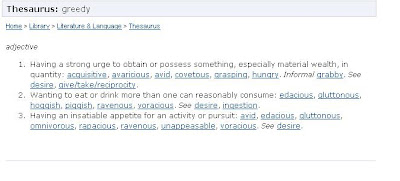
Let’s say that you want to know the meaning ,the definition ,synonym of the word GREEDY.
Go to Google and type in the word greedy.
Click the Google search button.
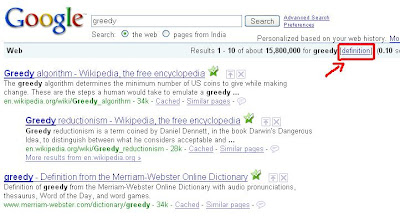
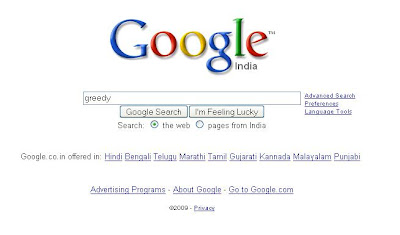 Your results will show up.
You will also see a link for definition. Now Click definition.
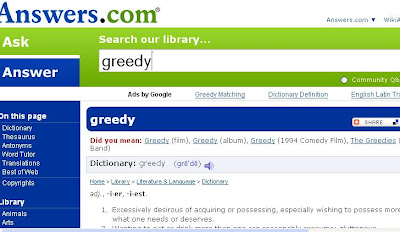
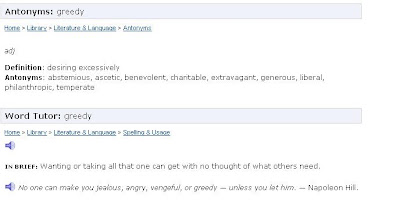
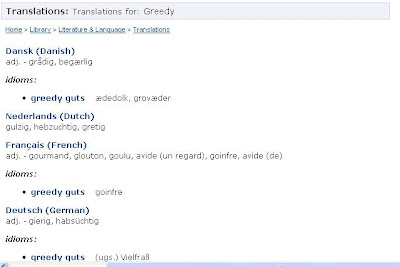
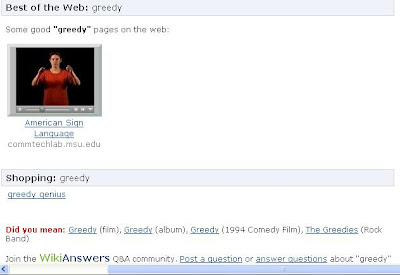
 Another page will open up with the Dictionary Meaning, Thesaurus,Antonyms,Word Tutor,Translations,Best of the Web and even Shopping for the word GREEDY.
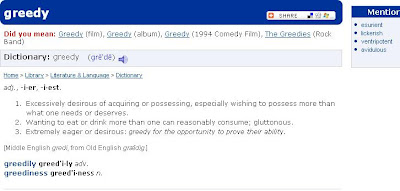
But then , if you are only interested in finding a quick dictionary style definition of greedy, use the syntax define:
Like this - define:greedy
Type in and click Google Search.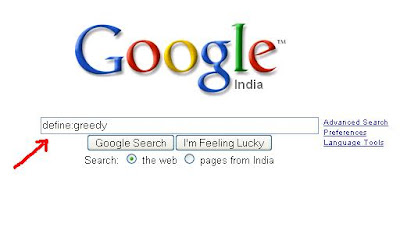
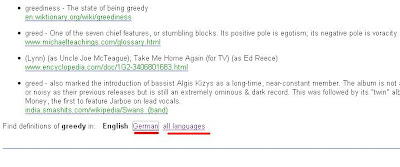
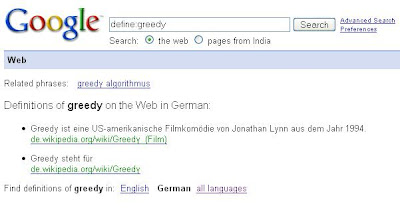
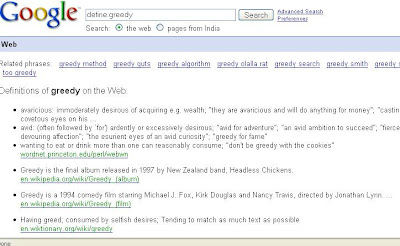 If you want the definitions in other languages too,there are options.
For,instance, if you click on German, the results will show up in German!
 What if you are not a good speller?Do not worry! Google will still suggest an alternate search, just as it does for regular Web searches. Like if we type in define: gredy, Google will helpfully ask you, "Did you mean: define: greedy."
How cool is this? :)
Copyright © 2008-2009 Laila Rajaratnam. All Rights Reserved. Read more Entry>>
Let’s say that you want to know the meaning ,the definition ,synonym of the word GREEDY.
Go to Google and type in the word greedy.
Click the Google search button.
 Your results will show up.
You will also see a link for definition. Now Click definition.
 Another page will open up with the Dictionary Meaning, Thesaurus,Antonyms,Word Tutor,Translations,Best of the Web and even Shopping for the word GREEDY.


But then , if you are only interested in finding a quick dictionary style definition of greedy, use the syntax define:
Like this - define:greedy
Type in and click Google Search.

 If you want the definitions in other languages too,there are options.
For,instance, if you click on German, the results will show up in German!

 What if you are not a good speller?Do not worry! Google will still suggest an alternate search, just as it does for regular Web searches. Like if we type in define: gredy, Google will helpfully ask you, "Did you mean: define: greedy."
How cool is this? :)
Copyright © 2008-2009 Laila Rajaratnam. All Rights Reserved. Read more Entry>>
Download Podcasts To PC Using iTunes
Podcasts which are recorded radio or TV programs can be downloaded to your computer for free using Apple’s iTunes. You can subscribe to a show using iTunes and automatically receive new episodes as they become available. There are many thousands of free Podcasts available in the iTunes Store, which cover many popular TV and radio shows around the world. The podcast's download time , depends on your Internet connection speed.
Here's how you do it:
1. Download Podcasts
Open ITunes.
Click iTunes Store link in the left pane.

Click the Podcasts menu item on the main screen.
Look at the Categories menu, and choose either audio Podcasts, or video Podcasts.
Click on a Podcast thumbnail picture for more information, or look at the Top 20 Podcasts on the right-hand side of the screen.
Click Power Search option in the Quick Links menu to search for a particular show.
Click on a show and click the Get Episode button.
2. Subscribe to Podcasts
Choose a show and click on the Subscribe button.
All future episodes will now be automatically downloaded to your iTunes Library.
3. Play Podcasts in Your iTunes Library
Go iTunes Library.
Click on the Podcasts menu item in the left pane (under Library).
The downloaded subscribed episodes will appear in bold.
Double-click on an episode to access it directly in iTunes.
To unsubscribe , highlight the show in your library and click the Unsubscribe button at the bottom of the main window.
That's it! You're done! :) Read more Entry>>
Here's how you do it:
1. Download Podcasts
Open ITunes.
Click iTunes Store link in the left pane.

Click the Podcasts menu item on the main screen.
Look at the Categories menu, and choose either audio Podcasts, or video Podcasts.
Click on a Podcast thumbnail picture for more information, or look at the Top 20 Podcasts on the right-hand side of the screen.
Click Power Search option in the Quick Links menu to search for a particular show.
Click on a show and click the Get Episode button.
2. Subscribe to Podcasts
Choose a show and click on the Subscribe button.
All future episodes will now be automatically downloaded to your iTunes Library.
3. Play Podcasts in Your iTunes Library
Go iTunes Library.
Click on the Podcasts menu item in the left pane (under Library).
The downloaded subscribed episodes will appear in bold.
Double-click on an episode to access it directly in iTunes.
To unsubscribe , highlight the show in your library and click the Unsubscribe button at the bottom of the main window.
That's it! You're done! :) Read more Entry>>
Saturday, January 17, 2009
What Is A Podcast?
Podcasts are news now! You hear about podcasts, here, there and almost everywhere! :)
So, what is a podcast?
Firstly, the name Podcast comes from ‘iPod’ and ‘broadcast’ , but then, an iPod is not required to listen to podcasts . Anything that plays MP3 is fine to listen to podcasts ! Once the podcast is downloaded, it's just an MP3.
Now what exactly is a podcast?
A Podcast is:
1. An audio file that you create in a mp3 format.
2. It is your own radio or talk show that you publish and share with others around the world !
3. You upload it to a server like your website or blog, along with an RSS (Really Simple Syndication) feed.
4 Your listeners download the podcast using one of numerous programs that allows your audio file to be retrieved automatically.
5. Finally,your listeners get to listen to the podcast at their convenience in their own iPod or MP3 player.
In a nut shell - A podcast is an audio file posted on the web ,which is delivered to listeners via a RSS feed( a subscription service).Thus, podcast is merely just a RSS feed that contains an MP3 or audio file!
Here are some of the motivations to start a podcast:
• Do you have the urge to reach out to to people around the world? Well, start a podcast!
• Want your own talk show but you don’t own a radio station or work at one? Well, start a podcast!
• You’re a musician and you want to promote your Band .Well, start a podcast!
• Want to share Industry ,organization , investor and sports news? Well, start a podcast!
• Want to tell Stories to children or the visually-impaired? Well, start a podcast!
• Are you a writer and you want to interest people by offering a few spoken pages?Well,start a podcast!
The options and motivations are many. Whatever, you can become a podcaster!
Just as Blogs have made journalists out of Bloggers, so have Podcasts made Radio celebrities out of Podcasters.
Now you have an idea about what a podcast is all about!
Copyright © 2008-2009 Laila Rajaratnam. All Rights Reserved. Read more Entry>>
So, what is a podcast?
Firstly, the name Podcast comes from ‘iPod’ and ‘broadcast’ , but then, an iPod is not required to listen to podcasts . Anything that plays MP3 is fine to listen to podcasts ! Once the podcast is downloaded, it's just an MP3.
Now what exactly is a podcast?
A Podcast is:
1. An audio file that you create in a mp3 format.
2. It is your own radio or talk show that you publish and share with others around the world !
3. You upload it to a server like your website or blog, along with an RSS (Really Simple Syndication) feed.
4 Your listeners download the podcast using one of numerous programs that allows your audio file to be retrieved automatically.
5. Finally,your listeners get to listen to the podcast at their convenience in their own iPod or MP3 player.
In a nut shell - A podcast is an audio file posted on the web ,which is delivered to listeners via a RSS feed( a subscription service).Thus, podcast is merely just a RSS feed that contains an MP3 or audio file!
Here are some of the motivations to start a podcast:
• Do you have the urge to reach out to to people around the world? Well, start a podcast!
• Want your own talk show but you don’t own a radio station or work at one? Well, start a podcast!
• You’re a musician and you want to promote your Band .Well, start a podcast!
• Want to share Industry ,organization , investor and sports news? Well, start a podcast!
• Want to tell Stories to children or the visually-impaired? Well, start a podcast!
• Are you a writer and you want to interest people by offering a few spoken pages?Well,start a podcast!
The options and motivations are many. Whatever, you can become a podcaster!
Just as Blogs have made journalists out of Bloggers, so have Podcasts made Radio celebrities out of Podcasters.
Now you have an idea about what a podcast is all about!
Copyright © 2008-2009 Laila Rajaratnam. All Rights Reserved. Read more Entry>>
Friday, January 16, 2009
Create Radio Playlist In ITunes
Want to create Radio Playlist in iTunes? Yes, you can create Radio Playlist and listen to streaming audio in iTunes, all day long! Though Apple’s iTunes is basically used to purchase music, synchronize with iPod and iPhone, burn CDs and rip music.. you can also listen to live streaming music from your favorite radio stations.
Of course, this Radio playlist cannot be synced to your iPod or iPhone, but then, you will be able to enjoy live streaming audio from your fav radio playstations! Just remember that instead of adding music tracks, we are going to add radio stations. That’s it!Nothing more!:)
All you need is Apples ITunes software version 7or above.
This is what you have to do:
1. Create a Playlist.
To create a list of your favorite radio stations, you first need to create a blank playlist in iTunes.
Open Itunes, click File > New Playlist .
Or Click the + Button at the bottom left of iTunes.
Type in a name for the playlist.
 2. Add Radio Stations
Click on the Radio menu item in the left pane (underneath Library).
A list of categories will be displayed with a triangle next to each one.
 Click on a triangle next to a genre of your choice to see what radio stations are available.
Double-click a radio station to begin listening to it.
Drag it to your playlist if you like it.
You're done!

3. Check and Use Your Radio Station Playlist
Click on your newly created playlist in the left pane of your screen (underneath Playlists).
Check that all the radio stations you dragged and dropped are in the list.
Click Play button at the top of the screen.
 Enjoy your unlimited supply of free music - 24/7 ! :)
Copyright © 2008-2009 Laila Rajaratnam. All Rights Reserved. Read more Entry>>
Of course, this Radio playlist cannot be synced to your iPod or iPhone, but then, you will be able to enjoy live streaming audio from your fav radio playstations! Just remember that instead of adding music tracks, we are going to add radio stations. That’s it!Nothing more!:)
All you need is Apples ITunes software version 7or above.
This is what you have to do:
1. Create a Playlist.
To create a list of your favorite radio stations, you first need to create a blank playlist in iTunes.
Open Itunes, click File > New Playlist .
Or Click the + Button at the bottom left of iTunes.
Type in a name for the playlist.
 2. Add Radio Stations
Click on the Radio menu item in the left pane (underneath Library).
A list of categories will be displayed with a triangle next to each one.
 Click on a triangle next to a genre of your choice to see what radio stations are available.
Double-click a radio station to begin listening to it.
Drag it to your playlist if you like it.
You're done!

3. Check and Use Your Radio Station Playlist
Click on your newly created playlist in the left pane of your screen (underneath Playlists).
Check that all the radio stations you dragged and dropped are in the list.
Click Play button at the top of the screen.
 Enjoy your unlimited supply of free music - 24/7 ! :)
Copyright © 2008-2009 Laila Rajaratnam. All Rights Reserved. Read more Entry>>
Subscribe to:
Posts (Atom)


