Do you have a huge collection of music and movies in your ITunes library which you want to transfer to a new computer? Well ,it is really a breeze to transfer your collection to a new computer.
There are three options for moving your iTunes library
1. Use iTunes Backup
ITunes has a built-in back up tool in File menu. Open Itunes.
Just go to File - > Backup to Disc.
That’s it!
By this method you can back up your full library to CD or DVD. All you need are blank discs, Cd/DVD Burner and some time. But then ,if you have a huge library, it may not be the most practical way to back up, as you may require many CDS or DVDS
However, it is a good idea , to back up only your “Purchased Music” playlist , as iTunes Music Store tracks cannot be re-downloaded. The “Purchased Music” playlist is like other playlist – just right click the playlist and click the burn icon to burn. Use “Data” mode, of course.
2. External Hard Drive
Hard drives are another good iTunes backup option. Just connect your external hard drive to your computer.
Open Windows Explorer and go to your iTunes music folder.
On Vista it's C:\Users\your.username\Documents\My Music\iTunes\iTunes Music.
On Windows XP it's under Documents and Settings.
On a Mac, it’s just called ‘Music.’
Copy the iTunes Music folder to your external hard drive, and then plug the hard drive into the new computer. Make sure iTunes is installed on the new computer as well, and just copy the contents of the iTunes Music folder from your external hard drive to the new computer .Or maybe to your old computer in case you have had a crash.
3. iPod Backup Software
The easiest ways to move your iTunes library is by using software to copy the contents of your iPod to a new computer. There are a number of iPod copy or iPod transfer programs available for free.
Done!
Read more Entry>>
Sunday, January 11, 2009


IPod / IPhone to PC Music Transfer
Lets say -
Your hard drive crashed, wiping out iTunes as well, but your iPod still has a copy of your music collections.
What do you do? Well, copy the music from your iPod to your computer!
Are you sure? I was under the impression that you cannot move your music from your iPod back to your PC. Well.. things have changed and now there are software programs(freewares as well as sharewares) that allow you to copy music from your ipod to your computer.
Before you use the software to copy your iPod library to the PC, you'll need to install iTunes.
When iTunes is installed, you will need to change the setting.
Go to the Edit menu -> iTunes Preferences.
1. Select Advanced Tab.
2. Check the box next to "Copy files to iTunes Music folder when adding to the library."
3. Click OK to close iTunes preferences.
You can choose anyone of these following freeware programs , download it and install it.
3. iPodAid(http://www.ipodaid.com/ipod-to-computer-transfer.html)
Open the program.Here I have used IPod PCTransfer.
When you connect your iPod to the computer, the program will automatically detect the iPod and read it contents.
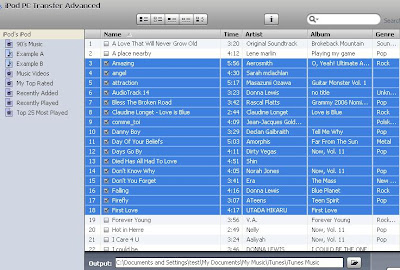
The contents of your iPod will be displayed in the program's window .
1. Click the "Select All" button to select all the music in your iPod which you plan to transfer to computer.
2. Click the Export button to start transfer music from iPod to computer.
3. Relax, make yourself a cup of coffee and wait till the transfer is finished automatically.
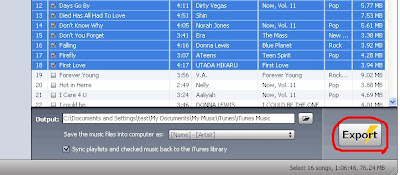 Note-You can also select one song at a time if you only plan to copy just a few songs .
These softwares support all types of iPod inlcuding iTouch and iPhone. Read more Entry>>
Your hard drive crashed, wiping out iTunes as well, but your iPod still has a copy of your music collections.
What do you do? Well, copy the music from your iPod to your computer!
Are you sure? I was under the impression that you cannot move your music from your iPod back to your PC. Well.. things have changed and now there are software programs(freewares as well as sharewares) that allow you to copy music from your ipod to your computer.
Before you use the software to copy your iPod library to the PC, you'll need to install iTunes.
When iTunes is installed, you will need to change the setting.
Go to the Edit menu -> iTunes Preferences.
1. Select Advanced Tab.
2. Check the box next to "Copy files to iTunes Music folder when adding to the library."
3. Click OK to close iTunes preferences.
You can choose anyone of these following freeware programs , download it and install it.
- iPod PC Transfer 3.7(http://www.ipodpctransfer.com/)
3. iPodAid(http://www.ipodaid.com/ipod-to-computer-transfer.html)
Open the program.Here I have used IPod PCTransfer.
When you connect your iPod to the computer, the program will automatically detect the iPod and read it contents.

The contents of your iPod will be displayed in the program's window .
1. Click the "Select All" button to select all the music in your iPod which you plan to transfer to computer.
2. Click the Export button to start transfer music from iPod to computer.
3. Relax, make yourself a cup of coffee and wait till the transfer is finished automatically.
 Note-You can also select one song at a time if you only plan to copy just a few songs .
These softwares support all types of iPod inlcuding iTouch and iPhone. Read more Entry>>
Saturday, January 10, 2009
Burn CDs In ITunes
Would you like to put your favorite play list from iTunes to a CD? Yes, that’s right! ITunes allow you to create CDs from iTunes play list and you can burn the CDs from iTunes as well! Is it difficult? Oh, no, it’s a piece of cake!
 ITunes allows you three burning options!
1. Audio CD-This is readable by virtually any audio CD player.
2. MP3 CD- This is copying the files as MP3 files,
3. Data CD or DVD- The songs in a playlist, regardless of file type,(even the itunes music store protected AAC files) can be burned. This option allows you to burn to a DVD-R disc, which can hold approximately 5 times as much data per disc.
Choose the Preferred Speed and Gap between songs.
Click Burn .

 Notes-
Read more Entry>>
- Open ITunes
- Select the playlist to be burned
- Either click the Burn Disc at the right bottom of iTunes or right click on the selected playlist and click Burn Playlist to CD.
 ITunes allows you three burning options!
1. Audio CD-This is readable by virtually any audio CD player.
2. MP3 CD- This is copying the files as MP3 files,
3. Data CD or DVD- The songs in a playlist, regardless of file type,(even the itunes music store protected AAC files) can be burned. This option allows you to burn to a DVD-R disc, which can hold approximately 5 times as much data per disc.
Choose the Preferred Speed and Gap between songs.
Click Burn .

- ITunes prompts you to insert a blank disc.
- Insert a blank CD in your CD/DVD drive.
- ITunes will begin the Burn process .
- A progress bar and the names of the songs burning to the disc are displayed.
- When done, eject the newly burned disc from your drive and then test it.
 Notes-
- You can burn a CD only from the songs in a playlist.
- If a playlist contains more songs than will fit on the CD, iTunes will only burn as many songs as will fit on the disc.
- The size of the selected playlist is shown at the bottom of the iTunes window.
Read more Entry>>
Numeral - A Freeware Program
Hi..came across this freeware program and thought that it might be of some help to whoever is looking out for such a program!Numeral converts number bases between 2 and 36, also to and from Roman Numerals and to words.
You can download Numeral from here.

Enjoy! Read more Entry>>
You can download Numeral from here.

Enjoy! Read more Entry>>
Thursday, January 8, 2009
Google Health
Google’s Health is completely free and lets you to store and manage all of your health information in one essential place. Google Health offers a single location to consolidate and store your medical records and personal health information. You can also use Google Health to access a host of online services and tools, from a variety of third-party companies, to help you manage your health care better!
With Google Health, you can manage your health information and access your information anywhere, at any time. You just need a Google user name and password to get started!
Go to Google Health
(https://www.google.com/health/) and this window will appear!
Sign in with your Google account.
 Go through all their features.
 More details to store your information.

Google Health is free to their partners as well. There is no charge to doctors' offices, hospitals, pharmacies, and other companies that partner with Google Health though some third party companies that are incorporated with Google Health and offer customized services may charge you directly but it's up to you to choose to work with them. Google does not have financial relationship with these companies.
This is NOT a Google prank! Read more Entry>>
With Google Health, you can manage your health information and access your information anywhere, at any time. You just need a Google user name and password to get started!
Go to Google Health
(https://www.google.com/health/) and this window will appear!
Sign in with your Google account.
 Go through all their features.
 More details to store your information.
Google Health is free to their partners as well. There is no charge to doctors' offices, hospitals, pharmacies, and other companies that partner with Google Health though some third party companies that are incorporated with Google Health and offer customized services may charge you directly but it's up to you to choose to work with them. Google does not have financial relationship with these companies.
This is NOT a Google prank! Read more Entry>>
Google Flu Trends
When you are down with a bout of flu, what do you do? You search for information about the flu! Well, Google has found a way to tap this trend and use the information to estimate flu activity by region.
Google says, ‘Google Flu Trends will give you an estimate of the current outbreak level in the USA or break it down state by state. You can also see trends from past years and search for a place to find flu shots near you.’
Go to Google Flu Trends
(http://www.google.org/flutrends/) for more information on the Flu trends!
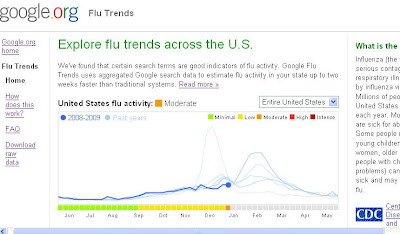 Read more Entry>>
Google says, ‘Google Flu Trends will give you an estimate of the current outbreak level in the USA or break it down state by state. You can also see trends from past years and search for a place to find flu shots near you.’
Go to Google Flu Trends
(http://www.google.org/flutrends/) for more information on the Flu trends!
 Read more Entry>>
Subscribe to:
Posts (Atom)


