There are 4 steps to produce your podcasts.Ofcourse these are just the basic steps for you to have an idea about what podcasts are all about!
1. Record Your Audio and Create Your MP3 File
You can record your audio in a free software program called Audacity which is quite simple to use.You can download it from here.
Audacity is available for the Windows, Mac OS 9 or X, and Linux/Unix versions. You will also have to download the LAME MP3 encoder in order to export MP3 files. You can find the link on the same page as the Audacity download.
There is another easy method to record your audio! Use the Sound Recorder which comes with Windows.The Basic tutorial to record using the sound recorder is here.
When your audio is done - Save it and Note the size of the file.
To note the size of the file-
1. Right click on the .mp3 file you created
2. Click “properties” and note the size.
2. CreateYour RSS Feed File
An RSS feed is in fact a text file with the extension .rss . Name it whatever but it should end with .rss . You will have to write a RSS file with XML or Extensible Markup Language which is similar to HTML or HyperText Markup Language .Both XML and HTML use similar tag system inside the RSS file. The good news is, you can copy another RSS file as your template and then modify it as needed.
The other option is to sign in to certain sites, so that you need not do the coding.
ClickCaster and MyRSSCreator are two such sites which offer no-coding!
You can also make use of some free and fee-based RSS file generators like –
Podcast RSS feed generator
Simple RSS File Generator
ListGarden RSS Feed Generator Program
3. Write the XML Inside the RSS File
Now write the XML..which begins with – title
It goes something like this..
The title of it:
The description:
The publish date
The mp3 file itself:
The exact location
The exact length of file:
And the type of file it is:
There! You’ve created the code needed for a podcast! Now, name your RSS file and save it to your desktop or a directory .
Example: MyPodcast.rss
4. Upload the .MP3 File, RSS File, and Validate It
An RSS file must stay inside a server. If you have your own website then you do already have a server hosting your website. Use that server!
You upload your RSS file along with the mp3s for your podcast using either any free FTP (File Transfer Protocol) program like CoffeeCup Free FTP or any other webpage upload software your hosting company provided.
To Validate or Check Your RSS File is Correct
You can type in the address of where you uploaded your RSS file a to a RSS Validators site like : http://validator.w3.org/ ,type your url and press check
Now all that you do is to provide the address of your RSS file to anyone who wants to subscriber to your podcast.
For example:http://www.yourwebsite.com/MyPodcast.rss
For people to receive your podcast, there are many free software programs.
Don’t forget to advertise your podcast by listing it in many of the directories available on the Internet .
Copyright © 2008-2009 Laila Rajaratnam. All Rights Reserved.
Read more Entry>>
Sunday, January 25, 2009


Windows Sound Recorder
It is very easy and simple to use the Sound Recorder which comes with Windows! You can record, mix, edit, and play sounds. You will need a microphone as well.
With the Sound Recorder you can:
• Add sounds to a file.
• Delete part of the sound file.
• Change the playback speed, volume and direction.
• Change or convert the sound file type.
• Add an echo.
First, plug your microphone into your sound card's mike input.
Open Windows Volume Control.
Go to> Start >Programs>Accessories>Entertainment>Volume Control

On Volume Control , Click Options and highlight Properties
Select Recording
Check Select box ,where it says MIC volume
Click OK

Next,Go to Start>Programs>Accessories>Entertainment>Sound Recorder
 When you start your recording, the volume switch can be adjusted using the slider control. Sound Recorder saves files in .wav format.If you need to convert it to MP3 format you can use any free converter programs.That's it!
Save it wherever you want to!
Great!You have just recorded your own audio!:)
Copyright © 2008-2009 Laila Rajaratnam. All Rights Reserved. Read more Entry>>
With the Sound Recorder you can:
• Add sounds to a file.
• Delete part of the sound file.
• Change the playback speed, volume and direction.
• Change or convert the sound file type.
• Add an echo.
First, plug your microphone into your sound card's mike input.
Open Windows Volume Control.
Go to> Start >Programs>Accessories>Entertainment>Volume Control

On Volume Control , Click Options and highlight Properties
Select Recording
Check Select box ,where it says MIC volume
Click OK

Next,Go to Start>Programs>Accessories>Entertainment>Sound Recorder
 When you start your recording, the volume switch can be adjusted using the slider control. Sound Recorder saves files in .wav format.If you need to convert it to MP3 format you can use any free converter programs.That's it!
Save it wherever you want to!
Great!You have just recorded your own audio!:)
Copyright © 2008-2009 Laila Rajaratnam. All Rights Reserved. Read more Entry>>
Saturday, January 24, 2009
Google's Hidden Utilities
There are the many utilities hidden in Google search! The following are a few of them!
Google's Weather

Would you like to see the weather for many U.S. and worldwide cities? Just type "weather" in the search box, followed by the city ,state, or country.

Google's Time

Do you want to see the time in many cities around the world? Type in "time" and the name of the city in the search box!

Fill in the Blank

Do you have a question? Let Google ‘fill in the blank’for you! Add an asterisk (*) after the sentence or question in the Google search box.

Stock Quotes

Want to check out the current market data of a company or fund? Type in the ticker symbol into the search box. Then, you can click the link to see more data from Google Finance.
Spell Checker
Would you want to spell check that your word is correct? Type in your word and the search will generate results with an alternative spelling and it will ask “Did you mean: (more common spelling)?”. Click in the suggested spelling to launch a Google search for that term.
How cool are all these? :) Read more Entry>>
Google's Weather

Would you like to see the weather for many U.S. and worldwide cities? Just type "weather" in the search box, followed by the city ,state, or country.


Google's Time

Do you want to see the time in many cities around the world? Type in "time" and the name of the city in the search box!

Fill in the Blank

Do you have a question? Let Google ‘fill in the blank’for you! Add an asterisk (*) after the sentence or question in the Google search box.

Stock Quotes

Want to check out the current market data of a company or fund? Type in the ticker symbol into the search box. Then, you can click the link to see more data from Google Finance.

Spell Checker
Would you want to spell check that your word is correct? Type in your word and the search will generate results with an alternative spelling and it will ask “Did you mean: (more common spelling)?”. Click in the suggested spelling to launch a Google search for that term.
How cool are all these? :) Read more Entry>>
Tuesday, January 20, 2009
Produce Your Own Podcast
Since podcast is the hot topic now, how about producing your own podcasts ? It is cool to host your talk show! Actually, Podcasting is a breeze !
To start your own podcast, all that you need is :
• A microphone
• Some free software
• Space on a web server
• Gift of the gab
That’s all! Simple!:)
But then, you should also learn just a few skills, which is a child's play!
You need to know how to:
• Record your audio and save it as an MP3 file.
• Create an RSS file.
• Write the “directions” that are inside the RSS file
• Upload the RSS “feed” and yourMP3 file
• Authenticate that the file is written and sent correctly.
Yes, That’s it! Told you that it is a snap!
Besides, just keep in mind the following:
• To use a good quality microphone so that your audio sounds good and clear.
• For recording, it is irrelevant what software application you use to record your audio.
• You simply have to create an audio file that can be converted to an MP3 file format.
Well, you are all set to be a Radio star!
Don’t miss the next post –Step by step tutorial to create your own podcast! :)
Copyright © 2008-2009 Laila Rajaratnam. All Rights Reserved. Read more Entry>>
To start your own podcast, all that you need is :
• A microphone
• Some free software
• Space on a web server
• Gift of the gab
That’s all! Simple!:)
But then, you should also learn just a few skills, which is a child's play!
You need to know how to:
• Record your audio and save it as an MP3 file.
• Create an RSS file.
• Write the “directions” that are inside the RSS file
• Upload the RSS “feed” and yourMP3 file
• Authenticate that the file is written and sent correctly.
Yes, That’s it! Told you that it is a snap!
Besides, just keep in mind the following:
• To use a good quality microphone so that your audio sounds good and clear.
• For recording, it is irrelevant what software application you use to record your audio.
• You simply have to create an audio file that can be converted to an MP3 file format.
Well, you are all set to be a Radio star!
Don’t miss the next post –Step by step tutorial to create your own podcast! :)
Copyright © 2008-2009 Laila Rajaratnam. All Rights Reserved. Read more Entry>>
Monday, January 19, 2009
Google's Hidden Calculator
Is there anyone who do not know that Google is a search engine? Well , but then, how many know that you can use Google search box as a calculator as well?It has a hidden calculator! Oh, no! It is not just an ordinary calculator to calculate only the basic math stuff but it can calculate both the basic and advanced math problems too!
Another advantage is that, you don't have to restrict yourself to numbers! Google can understand any words and abbreviations and evaluate those expressions, too.
Like for example, you want to add 1+1 (Great! Since I’m not a genius at Maths, I can only understand such simple basic stuff as 1+1..LOL)
Anyway,Go to Google Search engine.
Type in 1+1 and click Search
Your ansnwer will show up 1+1=2
You may use words too
Like,one plus one
and your results show.. one plus one=two

 You want to search for documents containing the terms you added, like for instance the 1+1,we just totaled? You can just do that and get results!
 You can calculate like this too!
 Next, coming to Complex Math problems…
Google can calculate more complex problems such as three to the thirtieth power,
3^30
 the square root of 160
or (sqrt)
 or the sine of 30 degrees.
sine(30 degrees)
You can even find the number of possible groups in a set. For instance,
24 choose 7 - finds the number of possible choices of 7 items from a group of 24 items.
And so on and so forth!
In the same manner,to calculate logarithm base 10 values, type log (100) in search box and press search button to show the result.
 To calculate cos90 value, type cos(90) in search box and press search button to show the result.

Here are some other math syntax Google recognizes:
• + for addition
• - for subtraction
• * for multiplication
• / for division
• ^ for exponential (x to the power of y)
• % for modulo (to find the remainder after division)
• choose X choose Y fines the number of possible subset groups of Y out of the set of X.
• th root of creates the nth root of a number
• % of finds percentages X % of Y finds X percent of Y.
• sqrt finds the square root of the number that follows
• ln logarithm base e
• log logarithm base 10
• lg logarithm base 2
• ! factorial - This must follow the number you wish to factor.
Is'nt Google's Hidden Calculator amazing!
Read more Entry>>
Another advantage is that, you don't have to restrict yourself to numbers! Google can understand any words and abbreviations and evaluate those expressions, too.
Like for example, you want to add 1+1 (Great! Since I’m not a genius at Maths, I can only understand such simple basic stuff as 1+1..LOL)
Anyway,Go to Google Search engine.
Type in 1+1 and click Search
Your ansnwer will show up 1+1=2
You may use words too
Like,one plus one
and your results show.. one plus one=two

 You want to search for documents containing the terms you added, like for instance the 1+1,we just totaled? You can just do that and get results!
 You can calculate like this too!
 Next, coming to Complex Math problems…
Google can calculate more complex problems such as three to the thirtieth power,
3^30
 the square root of 160
or (sqrt)
 or the sine of 30 degrees.
sine(30 degrees)
You can even find the number of possible groups in a set. For instance,
24 choose 7 - finds the number of possible choices of 7 items from a group of 24 items.
And so on and so forth!
In the same manner,to calculate logarithm base 10 values, type log (100) in search box and press search button to show the result.
 To calculate cos90 value, type cos(90) in search box and press search button to show the result.
Here are some other math syntax Google recognizes:
• + for addition
• - for subtraction
• * for multiplication
• / for division
• ^ for exponential (x to the power of y)
• % for modulo (to find the remainder after division)
• choose X choose Y fines the number of possible subset groups of Y out of the set of X.
• th root of creates the nth root of a number
• % of finds percentages X % of Y finds X percent of Y.
• sqrt finds the square root of the number that follows
• ln logarithm base e
• log logarithm base 10
• lg logarithm base 2
• ! factorial - This must follow the number you wish to factor.
Is'nt Google's Hidden Calculator amazing!
Read more Entry>>
Sunday, January 18, 2009
Google's Hidden Dictionary -1
Everyone knows that Google is a search engine! But then, did you know that Google has a Hidden Dictionary? Well, you may have noticed that when you're searching for a word, Google will offer a link to Web definitions of your word. This is part of Google's hidden dictionary!
Let’s say that you want to know the meaning ,the definition ,synonym of the word GREEDY.
Go to Google and type in the word greedy.
Click the Google search button.
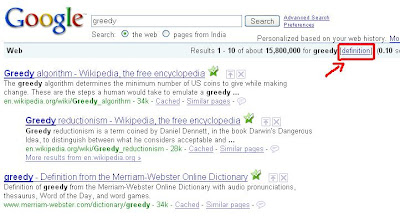
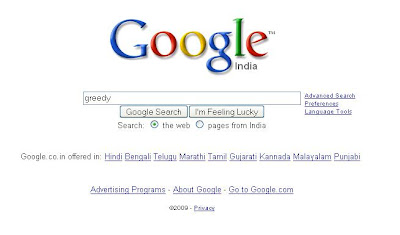 Your results will show up.
You will also see a link for definition. Now Click definition.
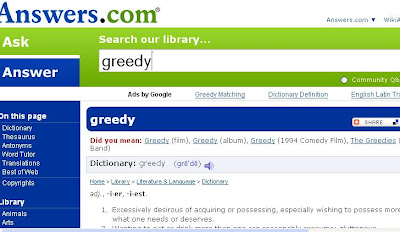
 Another page will open up with the Dictionary Meaning, Thesaurus,Antonyms,Word Tutor,Translations,Best of the Web and even Shopping for the word GREEDY.
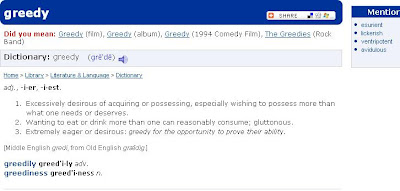
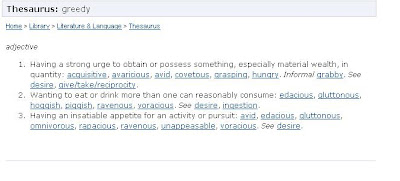
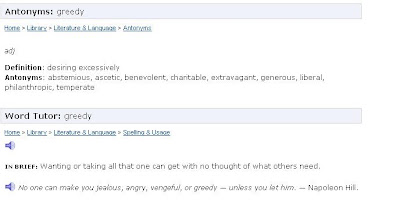
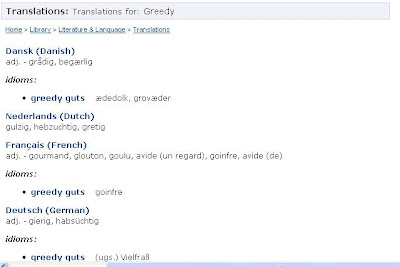
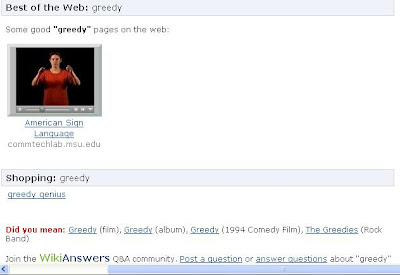
But then , if you are only interested in finding a quick dictionary style definition of greedy, use the syntax define:
Like this - define:greedy
Type in and click Google Search.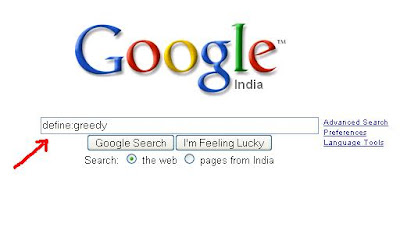
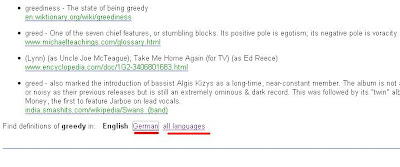
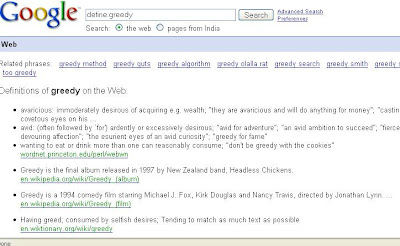 If you want the definitions in other languages too,there are options.
For,instance, if you click on German, the results will show up in German!
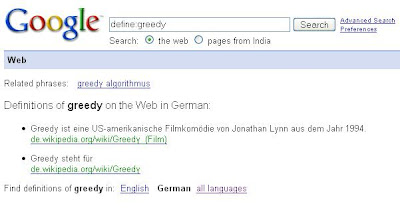 What if you are not a good speller?Do not worry! Google will still suggest an alternate search, just as it does for regular Web searches. Like if we type in define: gredy, Google will helpfully ask you, "Did you mean: define: greedy."
How cool is this? :)
Copyright © 2008-2009 Laila Rajaratnam. All Rights Reserved. Read more Entry>>
Let’s say that you want to know the meaning ,the definition ,synonym of the word GREEDY.
Go to Google and type in the word greedy.
Click the Google search button.
 Your results will show up.
You will also see a link for definition. Now Click definition.
 Another page will open up with the Dictionary Meaning, Thesaurus,Antonyms,Word Tutor,Translations,Best of the Web and even Shopping for the word GREEDY.


But then , if you are only interested in finding a quick dictionary style definition of greedy, use the syntax define:
Like this - define:greedy
Type in and click Google Search.

 If you want the definitions in other languages too,there are options.
For,instance, if you click on German, the results will show up in German!

 What if you are not a good speller?Do not worry! Google will still suggest an alternate search, just as it does for regular Web searches. Like if we type in define: gredy, Google will helpfully ask you, "Did you mean: define: greedy."
How cool is this? :)
Copyright © 2008-2009 Laila Rajaratnam. All Rights Reserved. Read more Entry>>
Subscribe to:
Posts (Atom)


